
Planescape: Torment Enhanced Edition has been announced and will be released shortly. Current indications seem to be that this edition will be the new definitive version, having been personally approved by Chris Avellone and even including many of the fan-made tweaks below. Fingers crossed!
You can read more about it here: http://www.planescape.com
I've pre-ordered my copy. Let's see!
Edit: Yep, it's great. Just play Planescape: Torment Enhanced Edition and skip the pain below.
This is the ultimate guide to Planescape: Torment mods; Including increasing the game resolution, playing in widescreen, installing the best mods, fixing bugs, re-adding deleted missions, and running on modern operating systems like Windows 8, 7, XP and Vista.This is a complete step-by-step guide to installing, patching and improving Planescape: Torment. It will allow you to play the game in widescreen (in any resolution you like), fix hundreds of bugs, re-add deleted missions that were cut due to time constraints, and much more.
In short: This is how Planescape: Torment SHOULD be played.
All of these wonderful things are possible thanks to the hard work of the following Planescape: Torment fans: Qwinn, scient, GhostDog, Valerio Bigiani (the bigg) and Aqrit. I've also used additional help constructing this guide from Jake, Air, Jeff Vader and others. Thanks a lot!
If you have any problems using this guide, there is now a TROUBLESHOOTING section at the end.
NOTE FOR GOG.COM USERS
Planescape: Torment was recently made available on the excellent Good Old Games website (aka http://www.gog.com). I'm pleased to announce that this guide is fully compatible with that version of the game, simply skip the first two steps and go straight to Step 3a. Enjoy!
Planescape: Torment was recently made available on the excellent Good Old Games website (aka http://www.gog.com). I'm pleased to announce that this guide is fully compatible with that version of the game, simply skip the first two steps and go straight to Step 3a. Enjoy!
Please note: It is highly recommended that you install these mods when you're starting a new game. If you're in the middle of an existing game, there can be unpredictable problems with your existing saves.
Note: The order in which you do the following steps IS important, so don't skip one unless it's 'optional' or 'recommended'.
Step 1: Install the Game (Required - of course)
You should have no problems using the normal installer, but it will only install the files found on Disc 1 (and then possibly force you to sit through an Icewind Dale trailer - arg).
WINDOWS 8, 7 AND VISTA USERS
It is highly recommended that you should NOT install the game to your C:\Program Files\ directory. That directory is a special directory and is locked by Windows to make it impossible for other files to alter what is installed there (for security reasons), which means it will potentially cause you a few problems later when you try to save games or install mods. To make life easier on yourself, just install the game to a different directory (eg. C:\Games\) or a different drive (eg. D:\).
Side note: Do NOT disable UAC in Windows -- This is akin to using a battleaxe to slice an apple!
UAC makes sure that applications do not have Administrator access on your system, while still giving YOU Administrator access when you need it. Disabling it for the sake of a game is very stupid. Don't do it!
It is highly recommended that you should NOT install the game to your C:\Program Files\ directory. That directory is a special directory and is locked by Windows to make it impossible for other files to alter what is installed there (for security reasons), which means it will potentially cause you a few problems later when you try to save games or install mods. To make life easier on yourself, just install the game to a different directory (eg. C:\Games\) or a different drive (eg. D:\).
Side note: Do NOT disable UAC in Windows -- This is akin to using a battleaxe to slice an apple!
UAC makes sure that applications do not have Administrator access on your system, while still giving YOU Administrator access when you need it. Disabling it for the sake of a game is very stupid. Don't do it!
Don't worry about doing a full-install now though, we'll get to that later in Step 2.
Step 1a: Install the official patch (Required - Only on the 4 disc or 1 disc versions!)
Note: If your copy of Planescape: Torment came on 2 discs then SKIP this step! (The patch is already pre-installed on the 2 disc version, and installing again it will cause problems within the game.)
How to install: If you're running the 4 CD or 1 DVD version then just download the official patch (trmt11.exe) and run the executable (it will automatically know where you've installed the game). This will bring Planescape: Torment up to version 1.1.
Step 1b: Install language packs (Optional)
Install the language packs you want (if any).
IMPORTANT: QUICK CHECK!
Before moving on, try running Planescape: Torment and ensuring that it loads correctly. If it doesn't, then you need to redo the steps above before applying the patches below.
Before moving on, try running Planescape: Torment and ensuring that it loads correctly. If it doesn't, then you need to redo the steps above before applying the patches below.
Ok, that's the basics done. Now let's take full advantage of your modern machine, and improve the loading speed and the graphics quality...
Step 2: Improve loading times on faster machines (Required)
Note: The step is necessary before you can perform the Steps 3a and b, below.What it does: Copying all of the game's files to your harddrive improves the game loading speed immensely and allows you to improve the graphics, too. It requires approximately 1.3GB of HD space, which should not be an issue for modern machines.
How to do it (4 disc version):
- First, create a new directory in your game directory (where torment.exe resides) and name it "CDALL".
- Then copy all the .bif files from disc 2 into this directory. (You'll find the .bif files in a folder called "cd2" on the game disc).
- Now copy all the .bif files from discs 3 and 4.
- First, create a new directory in your game directory (where torment.exe resides) and name it "CDALL".
- Then copy all the .bif files from the "cd2" directory of the disc into the CDALL directory.
- Do the same for the .bif files in the "cd3" and "cd4" directories on the disc.
- First, create a new directory in your game directory (where torment.exe resides) and name it "CDALL".
- Then copy all the .bif and .cbf files from disc 2 into this directory. (You'll find the .bif and .cbf files in a folder called "cd2" on the disc).
When you're finished you should either have 188 files (4 disc or 1 disc versions) or 108 files (2 disc versions) in the CDALL directory.
Now we just need to edit the configuration file to point to our new directory instead of the CD drive.
- Open torment.ini in Notepad. At the top should be a section called [alias] and it should look something like this:
CD1:=D:\
CD2:=D:\cd2CD3:=D:\cd3
CD4:=D:\cd4
CD5:=D:\cd5
Please note: Your configuration file might not be identical to this!
The top line ("HD0:") is where the game is installed on your harddrive (as mentioned, it may be different than shown here). The next lines point to your CD/DVD drive on your computer.
We need to change it so that the "CD" lines point to this "CDALL" directory you created. So, in my case, my torment.ini file now looks like this:
HD0:=C:\Program Files\Black Isle\Torment
CD1:=C:\Program Files\Black Isle\Torment\CDALL
CD2:=C:\Program Files\Black Isle\Torment\CDALL
CD3:=C:\Program Files\Black Isle\Torment\CDALL
CD4:=C:\Program Files\Black Isle\Torment\CDALL
CD5:=D:\Note: You can ignore the CD5 line, it's not used.
- For the next step, we're going to speed up loading times even more. Look the for the following line in the torment.ini file:
and change it to:
CacheSize=1
(The cache simply copies file from your CD to your harddrive -- since you've already done that, there's no point in getting the copy to copy them from your harddrive to your harddrive!)
- Finally, to make the game look smoother and play better, make the following changes to the following lines in the torment.ini file:
and
Maximum Frame Rate=40
- Save the file in Notepad and you're all set! (Note: Windows Vista and Windows 7 users should close and re-open the torment.ini file to ensure that the changes were saved.)
GOG.COM VERSION OWNERS START HERE!
Note: Make sure you've installed the game in a folder that isn't C:\Program Files!
Note: Make sure you've installed the game in a folder that isn't C:\Program Files!
QUICK CHECK!
Before moving on, try running Planescape: Torment and ensuring that it loads correctly. If it doesn't, then you need to redo the steps above before applying the patches below.
Before moving on, try running Planescape: Torment and ensuring that it loads correctly. If it doesn't, then you need to redo the steps above before applying the patches below.
Step 3a: Install The Bigg's Widescreen mod (Highly recommended)
(Currently at version 3.05)
Note: You MUST complete Step 2 before attempting to install this mod (unless you're a Gog.com version owner)!
What it does: This awesome patch allows you to play Planescape: Torment at a higher resolution, making the game look a whole lot better, especially on modern monitors.
NOTE
If you have existing savegames you must let the mod update them during installation otherwise they will become invalidated. (The mod will give you a choice during installation.) I strongly suggest backing up your saves first. Please note: As a side-effect of adapting your saves to the new system, all previously explored areas will be re-covered in the "fog of war".
If you have existing savegames you must let the mod update them during installation otherwise they will become invalidated. (The mod will give you a choice during installation.) I strongly suggest backing up your saves first. Please note: As a side-effect of adapting your saves to the new system, all previously explored areas will be re-covered in the "fog of war".
How to install: Download from mod from here: The Bigg's Widescreen mod (no, it doesn't matter whether you actually have a widescreen monitor or not). (If the previous link is broken, please check the official site.)
Double-click on the downloaded file, widescreen-v3.05.exe (it doesn't matter where the file is) and Browse to the directory on your computer where Planescape: Torment is installed. Click Install once you've done this.
When the new window opens, you will need to answer a series of very simple questions:
1. Choose your desired language (e.g. "0" for English followed by Enter).
2. Type "N" and press Enter to skip viewing the ReadMe file.
3. Install "Component [Widescreen Mod]" by typing "1" and pressing Enter.
4. When asked for your X-coordinates, enter the number of pixels wide you'd like the resolution to be. When asked for your Y-coordinates enter the number of pixels tall you'd like the resolution to be.
If you have an LCD monitor (and I'm sure 99% of you will), then you'll probably want to run the game at your monitor's highest resolution to achieve the maximum sharpness of graphics. Here's a list of common resolutions for those who feel unsure of what to type. (You can keep experimenting until you find one that looks best for you.)
| "Square" monitors | Widescreen monitors | |||
|---|---|---|---|---|
| X | Y | X | Y | |
| 800 | 600 | 1280 | 800 | |
| 1024 | 768 | 1440 | 900 | |
| 1280 | 960 | 1680 | 1050 | |
| 1280 | 1024 | 1920 | 1200 | |
Enter the co-ordinates and press ENTER.
5. Type 'Y' to update any savegames you have.
6. Type 'Y' if you're planning to play Planescape: Torment on more than one machine with different display resolutions. Otherwise, just type 'N'.
7. Finally, if everything looks good, type 'Y' to install the mod. When it's finished just press ENTER.
If you have any problems during install, check this thread for help: Common Problems Widescreen Mod.
Note: You MUST follow the next step in order to fix the graphics at your new higher resolution!
Step 3b: Install Ghostdog's incredible UI mod (Required)
(Currently at version 2.2)
What it does: Increasing the resolution of the game will knock many special graphical effects out of place, put videos in the top left hand corner of your screen, make the menu screens look really ugly, and possibly even make the text really hard to read. Luckily this mod fixes ALL the above problems... It's really quite amazing!
How to install: This mod is a little trickier to install, but it's worth it, and all of the mods in the later steps are installed the in the same way...
OPENING .RAR OR .7Z FILES
Before you begin you will need some software capable of opening .rar and .7z files. If you don't already have something, I recommend downloading and installing the excellent free utility 7-Zip.
Before you begin you will need some software capable of opening .rar and .7z files. If you don't already have something, I recommend downloading and installing the excellent free utility 7-Zip.
First, download the mod from here: Ghostdog's UI Mod.
When you've downloaded it, you'll notice it's a .7z file. You need to open it up (usually just double-clicking on the file) and extract the entire archive directly to your Planescape: Torment directory (this is the directory where torment.exe is).
Once you've done this, double-click on the file Setup-GhostDog's-PST-UI.exe from within the game's directory.
Note: If Windows doesn't want to allow you to run the file, simply right-click on it, select "Properties", then "Unblock", and finally, "OK". Then try again.
In the window that opens you will be asked question, like with Bigg's Widescreen Mod:
1. Type "N" to skip viewing the ReadMe.
2. Type "I" to install the mod.
3. You will then get five options (in various languages):
- Install the mod with the default fonts
- Install the mod with 20% bigger fonts
- Install the mod with 40% bigger fonts
- Install the mod with 80% bigger fonts
- Install the mod with 120% bigger fonts
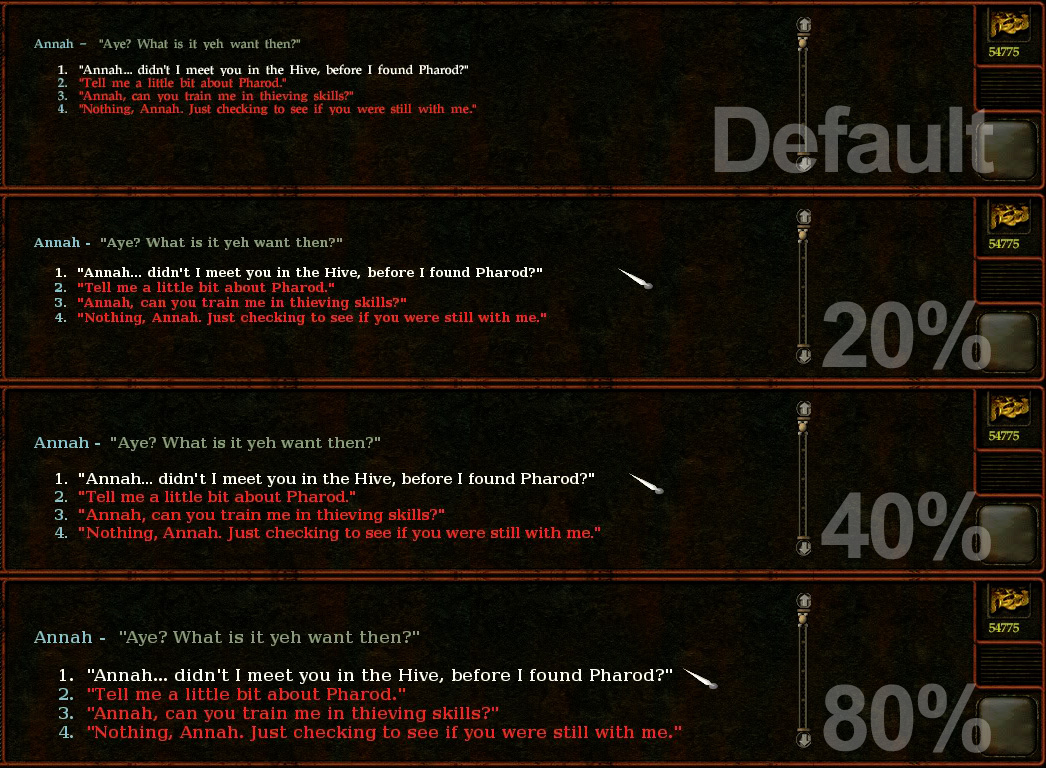
To pick an option, just type a number associated with it and press ENTER.
Note: If you're running Windows 7 and AVG anti-virus and you get a "permission denied" error, you may need to disable AVG's "Resident Shield" before this mod will install successfully. (Thanks to Maale for the tip.)
Note: Don't worry! As with all of the mods below, you can always run the setup file again in order to change your options. So if you don't like the font size you picked, simply run the Setup-GhostDog's-PST-UI.exe again and pick a different option!
QUICK CHECK!
Before moving on, try running Planescape: Torment and ensuring that it loads correctly. If it doesn't, then you need to redo the steps above before applying the patches below.
Before moving on, try running Planescape: Torment and ensuring that it loads correctly. If it doesn't, then you need to redo the steps above before applying the patches below.
Step 4: Install the Ultimate Fixpack by Qwinn (Highly recommended)
(Currently at version 4.13)
NOTE
You will not be able to use your existing savegame files once you've installed the Fixpack -- you will have to start a new game. Do not continue with this guide until you're happy to start a new game!
You will not be able to use your existing savegame files once you've installed the Fixpack -- you will have to start a new game. Do not continue with this guide until you're happy to start a new game!
What it does: Fixes hundreds of bugs left in the game. You definitely want this installed before playing the game.
How to install: Download the mod from here: Ultimate WeiDU Fixpack, and as with the previous mod, extract the entire archive to the game directory.
Then double click on the set-up file, Setup-PST-Fix.exe, from within the game directory. (As before, you may need to manually "unblock" the file before Windows will let you run it.)
In the window that opens, enter your language number (for example, enter "0" for English) and press ENTER. Then choose "N" (you can view the readme later if you want).
You'll then get the option to install the following items:
- Ultimate WeiDU Fixpack, by Qwinn
- Dialogue Spelling/Grammar Corrections (English Only)
- Subtitled Cutscenes
Explanation of the things you've just installed options:
- The Ultimate WeiDU Fixpack is, as you'd expect, a ton of bug fixes for the game. You definitely want this.
- The second option, Dialogue Spelling/Grammar Corrections, again corrects mistakes in the game's text (some serious, some not so serious, but all recommended).
- The final option, Subtitled Cutscenes, is also recommended as there's some very important stuff said during the cutscenes -- that you don't want to miss!
Step 5a: Install Unfinished Business by Qwinn (Recommended)
(Currently at version 4.12)
What it does: The Unfinished Business patch adds many missions back into the game that the designer's didn't have time to finish. Often these are items, conversations, and even entire quests that were intended to be in the game, but time and money constraints meant they were left out, despite being close to completion.
How to install: Download the mod from here: Qwinn's Unfinished Business patch.
Extract all files to the game directory (where torment.exe lives) and double-click on Setup-PST-UB.exe.
You will then be asked, as before, which items you want to install. All recommendations in this guide assume you're a new player to Planescape: Torment.
Do NOT install:
- All Recommended PS:T Unfinished Business Components
(Saying no to this will give you more control, below.)
You SHOULD install:
- Expanded Deionarra's Truth Mod
- Restored Cheat Items
You SHOULD install:
- Restored Able Ponder-Thought Research
Do NOT install:
- Restored More Morte Mortuary Moments
(This is interesting if you're familiar with the game. Basically it alters Morte's dialogue tree at the very beginning, but players new to Planescape: Torment are recommended to stay with the normal version.)
- Restored Candlestick Quest
(Again, this is better for players familiar with the game, for new players it's a little buggy and confusing.)
You SHOULD install:
- Restored Deionarra's Truth Conversations
Do NOT install:
- Restored Pendant of Yemeth Quest
(See Restored Candlestick Quest above for the reason why.)
You SHOULD install the rest of the mods. Each slightly improve and expand on the game in their own way:
- Restored Elyce and Company
- Restored Curst Citizens
- Restored Curst Prisoners
- Restored Carl Parfidor
- Restored Morte & Ingress's Teeth Banter
- Restored Alley of Dangerous Angles Thugs
- Restored Items
- Restored Party Comments and Banters
- Restored Mebbeth
- Restored Lower Ward Encounters
- Restored Bestiary Entries
Note from Qwinn: You MUST keep an item from Ravel's Garden through most of the game to complete the "Expanded Deionarra's Truth Mod" quest. This item has multiple other uses. You may have to forego the other uses to keep one until you need it near the end of the game. You have been warned!
Step 5b: Install Tweaks Pack (Recommended)
(Currently at version 4.12)
What it does: This patch tweaks and rebalances elements of the game. These are things that make the game more enjoyable to play, and have been requested by players since it was released.
How to install: Download the mod from here: Qwinn's PS:T Tweak Pack.
Same as before, extract all files to the game directory. Then run Setup-PST-Tweak.exe.
As a new player you SHOULD install the following:
- Banter Accelerator (30 mins)
Do NOT install:
- Dustman Robes Area Restriction Removal (it's a minor tweak for advanced players that may cause crashes)
You SHOULD install:
- BG2-Style THAC0 Display (makes your stats slightly easier to understand)
- Stackable Rings, Charms, Bracelets, Scrolls
- Explore City Areas
- Scale of Souls
- Save Nordom! Tweak
- Disabled Stat Minimums
- Maximized HP Per Level for TNO and Party
- Maximized Friends Spell
- No Battle Music
- Use Floating Text Font Globally
- Identify All Items
- Early Glabrezus Tweak
- Power Action Leprechaun Annah, by Black Isle
- Easter Egg Morte, by Black Isle
- Add Quickload (it's unstable, sadly)
- Rest Anywhere
- Tome Of Cheats
Step 6: Install Aqrit's DDrawFix (Recommended -- Not needed by GOG.com users!)
(Currently at version 1.0)
Finally, modern PC users will need to install the following mod to remove any graphical glitches their state-of-the-art graphics card creates with an old game like this.
Download and instructions can be found here: http://bitpatch.com/ie_ddrawfix.html
It installs the same way as the previous mods (extract the archive to your Planescape: Torment folder and run the executable).
CONGRATULATIONS!
You're all done! You can relax, start-up Planescape: Torment and enjoy one of the greatest games ever made in the best possible configuration. Hurrah!
You're all done! You can relax, start-up Planescape: Torment and enjoy one of the greatest games ever made in the best possible configuration. Hurrah!
Step 7: Help! I don't know what stats to give my character!
I've done everything you've suggested and the first screen I'm presented with is a bunch of stats for my character. How should I distribute them for the best Planescape: Torment experience?
Fear not, the answer is pretty much unanimous for this RPG. Everyone agrees that, unlike most games of this genre, WISDOM is the most important attribute, followed by INTELLIGENCE, and then CHARISMA.
Boosting these stats will open up more of the story to you.
As such, it's been suggested that the following starting stats are best:
WIS: 18
INT: 17
CHR: 13
CON: 9
STR: 9
STR: 9
DEX: 9
DEXERITY is considered the least important attribute of the game.
For a further, spoiler free, guide for beginners, I recommend reading Orion79's Beginner's Guide.
For a further, spoiler free, guide for beginners, I recommend reading Orion79's Beginner's Guide.
Good luck!
TROUBLESHOOTING
If you're having any problems, here's a quick list of common issues with solutions.
Problem: I've installed the game onto my harddrive but it still asks for disc 2! What's going on??
Solution: This guide does NOT remove copyright protection(!). You will still need to have your Planescape: Torment disc inserted in order to play this game. There are a couple of "no cd" fixes to be found on the internet, but these will, unfortunately, most likely interfere with the many updates featured in this guide.
(Note: If you're having weird issues that nobody can help you with and you're using a "no cd" fix, that could be the cause. Unfortunately, if you didn't make a back-up of the original torment.exe file before you applied the "no cd" patch, then you will have to restart the installation of everything from scratch. :( )
Problem: I still don't get it. I copied all the game files onto my harddrive in order to make it quicker... so why does Planescape: Torment need the disc in the drive when I run it?
Solution: Yes, you are running the game from your harddrive, but while the game is loading it checks to see that you own the original game by looking for the game disc in your drive. Once it has finished this quick security check, everything else is being loaded from your harddrive.
Problem: I keep being asked to register my game, it's very annoying!
Solution: Very easy solution here, just go to the game folder (where torment.exe is) and delete the folder called ereg. This will stop that annoying pop-up from bugging you. (Thanks to Killah Mate for sharing this bug fix!)
Problem: The default game icon looks really cruddy on my Windows Vista/7 desktop
This bugged me, too, so I made this little replacement icon. Much better!

Download the Vista/7 compatible icon (right-click save as...).
Problem: I have another problem that is not listed here :(
Solution: Try looking in this thread on the Spellhold Studios website. Hopefully you will find your answer there. (If you not, you could try asking for help. Some kind soul may know what to do.)
If you have any suggestions on how to improve this guide, please post it below. Thanks everyone!

409 comments:
1 – 200 of 409 Newer› Newest»Has anyone tried this on win7? Are there any known problems?
I doubt it will be any different, but time will tell!
Perfect timing on this article!
I remember having played this game 10 years ago, and loving the hell out of it. But I never finished it.
Hankering for a good role-playing game, I just today decided to go ahead and install it again. Searching for mods to increase the game's meager 640x480 resolution brought me here.
The available mods were much more than I expected and a bit overwhelming. This guide was excellent in getting me up and running (on Windows XP by the way).
Perfectly written and crystal clear for every step of this long installation process.
Hats off to you, good sir!
Awesome! I'm so glad you found it helpful and easy to understand! Thanks a lot!
Thanks, a very nice guide, tried, tested and found great :)
*Tassadar88 from SHS
I thank you for your work. Great job.
Wonderful! Worked like a charm! My only issue so far is that, occasionally, TNO won't talk to someone, but quitting and restarting fixes it.
By the way, does anyone know of similar instructions for Baldur's Gate 1/2, Icewind Dale 1/2?
Yeah, I'm not sure what causes that, but if you enter another area and go back a few times, it usually fixes it. Also, try not running to talk to them? :-/
Hey! thanks for the article!
I still couldnt seem to get it working properly though..
With Vista, I still encounter problems with "Please insert Disk 2" even after copying all the files and changing the ini files. Unless i change the directory back to the CD it doesnt work at all.. Any clue what could have gone wrong?
ahh.. i realised that my files in my disk 2 are not .bif files but .cbf files.. that would probably post a problem, any thoughts?
Hmm. I'm confused... Do you have Disc 2 inserted when you're asked for it? These fixes don't bypass copy protection, so you still need CD2 in the drive, even though it's running from your harddrive.
Does that help, or are you getting a problem even with Disc 2 inserted? :-/
I see, I was assuming that once you copied the files into your hard drive you no longer need your CD. That helps heaps, thanks!
I have a problem. I've followed the instructions and got to the step 4. When I try to install Ultimate Fixpack, a fatal error is reported. When I extract archive and run Setup-PST-Fix.exe, it automatically starts running. I don't get the option to choose language (enter language number) nor to view readme file or shoose what to install. It simply starts working, writing something like Auto-Updating on behalf of [Setup-PST-Fix.exe]:... and it lasts for 20 mins or so, and then it says:
[Setup-PST-Fix.exe] Using scripting style "PST"
ERROR: Problem parsing TP file [Setup-PST-Fix.TP2]: Sys_error("Setup-PST-Fix.TP2: Too many open files")
FATAL ERROR: Sys_error("Setup-PST-Fix.TP2: Too many open files")
Press ENTER to exit
I've downloaded the archive again, extracted it, but nothing has changed.
Please help!
Thanks you for your clear and detailed guide.
I would like to add that 1080 HD resolution is not supported by the UI mod (so I settled for 720).
Hi Marko, I'm really sorry for taking so long to reply. I have no idea what your problem is, I'm afraid :( I would suggest getting in contact with Qwinn at the Fixpack forum: http://www.shsforums.net/index.php?showforum=552
If I was forced to take a guess I would say it was something wrong with your system...? Lack of RAM or something? (Very weird, though.)
I hope you find a solution and, if you do, you come back here and post about it!
Thanks,
- Johnny
I also got the 4CD version and tried that as well, but same thing happened. I really don't know what could be the problem. Gremlins? :D I asked Qwinn, but he just said that he had already seen that problem, but couldn't remember where.
Thanks anyway! :)
Hi All,
I just installed the 4CD version and followed the instructions here and everything has worked just as described! ;)
Thanks so much for your guide - excellent piece of work!
Cheers!
Tod.
Hi, I just wanted to say that I had solved my problem, thanks to Qwinn and Ghostdog. Their explanation can be found here http://www.shsforums.net/index.php?showtopic=41205&st=40&gopid=460364&#entry460364
You could consider explaining this in your guide, since I'm not the only one with these problems. Or you could just point them at the link above. :)
Possibly the most well-written and easy-to-follow guide of this kind I have ever used. Thanks for all your hard work, I know it took plenty of time and effort to do something that is this high quality. The Internet thanks you.
Now I fill so lucky I finished this game while it was completely new.
Riddled with bugs and missing game content? Ok! :)
Thank you so much for this awesome guide!
Nah, it was already patched when released in my country.
Are those unfinished missions that good? I remember reading a lengthy post-mortem interview with the creators on some indie RPG site from a year or so ago, but nothing about them was mentioned I think. Is there some detailed write-up about them somewhere?
I'm the wrong person to ask, I'm afraid I only know this version! I do know that the devs have given their approval for their re-insertion, or something. It would be interesting to see a list of them to truly rate them.
Just finding this guide made me want to reinstall and give it another shot. I haven't finished it since its release, and probably won't get all the way through this time.
Install was no problem. The only weird thing I notice is that if I bring a screen up (Inventory, Journal, or Statistics) with a hotkey, I can't close it again with the hot key. I have to click in the lower right corner of the screen.
But being able to see this in proper resolution, and stack items, and have the fixes all at once is very impressive. Thanks for your effort.
just wondering if i wanted to run at 1440x900 (if thats possible; seen at least one bloke on another forum with it) which step should i set this res at and should i skip any steps to make it possible?
i understand the bit where in biggs' mod i should set it at 1280x800 to set it as widescreen then ghostdog it to get aspects fixed etc. can i then use one of the tweakers to set it to the higher res and have it work? and if so which tweaker am i after?
or is it a matter of skipping ghostdog and putting up with a slightly odd UI to use my desired res?
im using a Benq FP92W - while 1280x800 is pretty close, if i can do full res id like to. also using win 7, if i can find my disks i'll install it and see if it plays nice...
It's a matter of skipping GhostDog's update and having all the special effects and videos being in the wrong place.
Hey finished this game years ago when realesed and thought i'd give it another blast.
Followed your excellent instructions to the letter yet can not run the game (it ran before modding). Just get this error msg and it wont start:-
An Assertion failed in F:\torment\source\chitin\chvideo.cpp at line number 4322
Programmer says: No valid video modes supported.
I set res to 1280x800 with mods if that helps.
Any help appriciated as id love to replay this game at its best rather than the rather buggy state i remember.
Thanks
I think it's a problem with your drivers... This is from GhostDog's ReadMe file:
- Some video card drivers don't have 1280x800, 1280x768 or 1280x720 as a
standard option especially when the monitor has a 16:9 aspect ratio. In most
cases you have to open your video card's control panel and enable an option
that allows custom resolutions.
[nickwest has provided detailed instructions about the NVIDIA panel:]
How I could tell my res was non-standard? when I got to
Start->Settings->Control Panel->Display in the "Settings" tab theres a
slider with screen resolution. When I change that slider around there
isn't a 1280x800 displayed as an option (this is your problem).
1. Click the advanced button on the settings tab you're in
2. In the advanced menu, find the option on one of the tabs of "Start
the NVIDIA Control Panel" and click it
3. In the Advanced Settings, go to "Manage Custom Resolutions" or
something like that depending on your driver version.
4. There should be a checkbox along the lines of "Allow modes not
exposed by the display" and check this box.
5. Also on this UI page you should be able to create "custom
resolutions", click "create" and change your "Horizontal desktop
pixels" to 1280 and your "Vertical desktop lines" to 800, then click
"Test". If everything looks OK after accept the changes.
6. Now go back to your display settings resolution slider, 1280x800
should now be an option and this mod should work!
Thanks worked fine to run the game but i got major graphic issues- verticle lines covering half the screen of cycling pixles :S
Tried some patches for nvidia cards with no luck.
Think i'll just run in its good old fashioned res as nature intended. Thanks for the help and speedy reply though
Thanks for this one, i'm looking for this step by step tutorial for a long time.
Wow very weird that everyone wants to play this game at the same time. I've been looking for my copy for the past week and only just found it today but seems most of the comments have been in the last month or so.
Great guide! Had a few problems trying to actually get to the install screen as it didn't want to load after the front screen with "Install, View Demo" etc.
Fixed now though. Thanks!
hi i followed your guide but when i try to play the game i get the message. An Assertion failed in F:\Torment\Source\chitin\ChDimm.cpp at line number 787.(F: is my cd drive) any ideas where i went wrong?
Really sorry, that sounds like a very weird error. You could try asking for assistance here:
http://www.shsforums.net/index.php?showtopic=41205
Sorry I can't be of more help :(
Thanks for this outstanding guide! I just got my hands on a copy of the 4CD game, never having played it before. I applied all the recommended mods/patches just as described here and so far it's working excellently. I had a small problem when my display driver didn't support 1280x800 as one of its options, so the game exited with an error. A quick google search showed how to fix it (add the resolution manually using the nvidia control panel), and now everything is fine.
I can't believe how much better this looks than Baldur's gate, which I have been playing at the default resolution. I'm going to install the widescreen mod for that game ASAP!
hey, thanks for the awesome guide though i started having some problems with the game after all these moddings.
Firstly, contrary to what you stated, my older saves loaded and worked correctly. is this something to be expected?
secondly, when i try to enter some areas like homes, the game freezes in the saving part of the autosave system. the bar reaches the lady's head but a loading bar never shows up. do you happen to know the cause of this?
thanks in advance.
Newer version of the widescreen mod is available, version 2.2.
http://www.gibberlings3.net/widescreen/
Thanks for the heads up!
@epsvl
I think this could be sort of error that comes about from using saves from the unmodified version, but I'm afraid I don't know for sure.
~ 7. Save the file in Notepad and you're all set! (Note: In Windows Vista you may need to save torment.ini onto your desktop and then copy it back to the game directory.)~ If you have Vista, it's actually better to install the game into 'games' sub-directory, not into the 'Program Files' sub-directory, because the Vista protects the Program Files folders content from being overwritten.
I did the .INI fix 3 times but kept getting the same "Insert Disc 2" Message. To fix the issue i just copied everything out of the CD2 folder(.BIF files and .CBF files) and it worked fine for me.
Thanks for this, I intend to use these fixes on all Baldur's Gate and Icewind Dale games as well. The infinity Engine is just so poorly protected lol.
Excellent Guide! There's a slightly better order you can use to install these. See
http://www.shsforums.net/index.php?showtopic=30840&st=200&gopid=465681&#entry465681
for more details
Hi everyone, i've decided to play this game that i never played before because everyone told me it's really good. But i've some problems when i lunch it with the mod here described.
If i play the game in 1280x1024 (the best res for my monitor) it seems that the game lag and the fps drop. I don't know why but i would like to know if you have the same output after modding this game.
My computer is
intel Dual core 1.86 ghz 2mb ram e ati radeon 4870.
I'd like to hear some advices from you. Thx
"it seems that the game lag and the fps drop. My computer is
intel Dual core 1.86 ghz 2mb ram e ati radeon 4870."
It's probably the graphic card. I recently purchased the same card and I'm having FPS drops. With my older card everything was ok. To improve performance go to the Torment.ini and set Translucent Shadows=0. Also go to the control panel and set all 3d settings to "use application settings" and also disable triple buffering and adaptive anti-aliasing. This will improve your performance somewhat. If the game's FPS are still very low, then lower the hardware acceleration to one above "none" (desktop-> properties-> settings-> advanced-> troubleshooting) This will most likely fix the fps problem but it may introduce other graphical glitches.
Hi, thanks for the great article! I'm working through it now. Feedback:
1. I have the 2CD version. In step 2, you have to copy both the .bif files (only 4 of them) *and* the .cbf files (104 of them) to CDALL.
If you don't do this, the first area fails to load (asking you to insert disc into drive c:).
2. You might add a step 2b, which is to try launching the game to see if it works, before adding any mods and complicating matters.
Cheers
- Aaron
Thanks Aaron for the great contribution. I'll update the guide with your suggestions.
Aha! It looks like a CBF file is a "compressed BIF". This explains
1. why they are required, and
2. how they fit the 4-CD game onto 2 CDs : )
Well spotted on the CBF files, too! I too had wondered how they'd managed to compress the game onto 2 discs as well.
All works perfectly, thanks a lot Johnny!
Again I made a sanity check launch after the resolution/UI mods (step 3b) to confirm nothing was messed up.
Looking forward to playing through again : )
Im getting one of those asertion errors or whatever number 4322. video not supported or whatever it says pretty much like Spikey Kiwis error. I dont have a nvidia card, all I have is the graphics card that came on the computer, A gateway laptop I bought brand new about 4 months ago. Well Im gonna just go back to normal res and see if I have any other problems. Either way GREAT guide, Im usually an idiot when it comes to this stuff but I got through the guide no prob. BTW anyone know where I can find solutions and talk boards on Vampire: The Masquerade bloodlines?
ok well forget my last comment the bigger problem here is the same one that led me to your mod guide thinking that would solve it. The first time I played the game I got all the way to the exit of the mortuary and in the saving screen it froze. After installing the mods now it just froze when I tried to go up the first set of stairs, same amount of the save/load bar loaded (not much). If anyone can help me PLEASE. I wanna play this game so bad, Ive heard nothing but good things...
Another tip. If you are seeing any of the following visual quirks (I did):
- characters walking backwards
- very blocky 'darkness' tiles outside your line of sight
- ugly rectangles around item pickups
- slowdown and stutter when spell effects appear
Simply go into Video Options and set everything (all 3 buttons) to *Software mode*. I think modern graphics cards do things differently than in 1999!
If your PC is reasonably up to date you shouldn't see any adverse effect.
I still cant cast some spells without the graphics going crazy. no backwards walking or blocky black areas though. win7 nividia geforce.
Actually flizbap I'm having the same problem - it doesn't show up until the bigger spells in midgame.
From forums it looks like disabling 3D acceleration is the right direction - however this is mostly impossible with Vista + modern drivers. e.g. dxdiag.exe no longer lets you do it.
Maybe if you run on XP inside a VMWare image..?
OK, I can confirm there may be a way forward for Vista/Win7 users experiencing corruption when big spells go off. It's not trivial though.
I just fired up a Win XP Pro instance in VMware and the game runs fine. The spell effects are OK - the only glitch is a slight flickering in the game's mouse pointer.
High level steps are
1. Get VMware player - it's free.
2. Create a .vmx file (a virtual machine) and a .vmdk file (a virtual disk). You can google for help on this.
3. Check that VMware will open your .vmx image correctly and recognise the disk, etc.
4. Get hold of a WinXP Pro ISO image. Mine is SP2.
5. Install Windows on your VMware image.
6. Install VMware tools on the virtual Windows.
7. The clever bit: simply drag and drop the /Torment folder from your PC into the VMware desktop.
8. Set VMware to be able to see your CD drive (the game needs to see the game disc).
9. Launch and cross your fingers!
Wow, thanks for sharing that!
Hi, thanx for sharing this guide, it's awesome for an awesome game!
I run the game in Win7 with a geforce 8500GT (I've installed the nvidia fix) but still got the problem with casting spells: the screen slowdown and flash!
Anyone can help? I don't want to install winXP...is there a patch that can fix this problem?
Gianluca said " Hi, thanx for sharing this guide, it's awesome for an awesome game!
I run the game in Win7 with a geforce 8500GT (I've installed the nvidia fix) but still got the problem with casting spells: the screen slowdown and flash!
Anyone can help? I don't want to install winXP...is there a patch that can fix this problem?"
I'm running XP with a Nvidia 8000 series and had the same problem with spells crashing my system. Found this solution on another site that seem to be working for me.
"Try updating your graphics card drivers. You most likely have either an ATI or nVidia graphics card.
If you have an nVidia card, you may experience problems even with the latest drivers. It has been suggested by forum member Vorlin and others that graphical corruption can be prevented by reducing your video card's graphics acceleration. The instructions to do this are as follows:
1) Right-click on the Windows Desktop
2) Click on "Properties"
3) Select the "Settings" tab
4) Click on the "Advanced" button
5) Select the "Troubleshoot" tab in the new window
6) Turn the graphics acceleration bar down 3 notches.
Note that you should not do this while the game is running. When you start Torment, the game's cursor will display graphical corruption initially but this should not be a problem once you load your save game. Also, make sure that you set the graphics acceleration back to "Full" before you play games other than Torment."
Planescape: Torment is probably my favorite game of all time. I played it the first time about 9 years ago and loved it. I've replayed it multiple times since that time. Reminds me of Dante's Divine Comedy...
Thanks for the updated so I can enjoy it again on a new system.
Thanx for the reply but I can't turn off the graphic accellerator in my Nvidia geforce 8500GT!
I tried the Dazzle's guide that I found in this website: http://www.shsforums.net/index.php?showtopic=30840&st=60
Now the spells and the effects are ok but after I installed it, I'm getting the mouse cursor artifacts across the dialog boxes and options screens, it's very bad to see!
Also the nvidia ddraw fix isn't working...
What can I do?
I've made a workaround for the cursor trail when disabling ddraw. It doesn't really fix the problem, but it makes it less annoying: http://www.shsforums.net/index.php?showtopic=43616
Hi I own a copy of Planescape: Torment (the 2 disc version), and whenever I try going to the Hive via the portal near Deionarra the screen pops up telling me to insert disc 2 (which is already in the CD drive).
I'm currently running the game at 1280 X 1024 with the 50% bigger font on Windows XP Home SP3, if that is worth any mention.
Thanks in advance for any help you give.
Hey ThunderPeel2001
Hey, there ThunderPeel.
I've released a new version of my PST UI mod.( http://www.shsforums.net/index.php?showforum=571 ) I've added support for all resolutions and bigger fonts for most Language versions.(English, French, Spanish, German, Italian, Polish, Hungarian and Russian). So you may want to edit your installation guide accordingly.
Thanks !
Wow! Ok, will do, shortly. Great job!
To all those with the "Insert Disk 2" errors, you need to make sure you copy the .cbf files over as well as the .bif files!
Sorry for the mistake in the guide and thanks to those who helped point this out!
i've been trying to get this game to work following the guide that you have written up (very good btw!!!!) but whenever i tried to run the game i got an error with the number 4322, after looking around a bit i fixed that, but now i have another problem; the game stops working after some sort of black screen. And no matter what i do it wont work!!! please, i need help TT_TT
nvm, i found that changing the cache size to 1000 fixed the problem. Thx for the guide!!! ^_^
@ Johnny Walker
All the .cbf and .bif files were copied over, and it still doesn't work.
@Anonymous
I think you'll have to start the installation over from scratch, I'm afraid :(
Thanks for updating on my account ThunderPeel. I see that the new guide is even better, you've done some great work !
Just one correction though. The NEW bigger fonts are different than the old ones. I also offer 3 different sizes (20%,40%,80% bigger). You can find a comparison screenshot here : http://www.shsforums.net/topic/37221-screenshots/
Thanks again!
Wow, those fonts look a lot nicer, too!
I've updated the guide again. Thanks for the kind words and all your hard work. It definitely improves the PS:T experience!
As a Vista user, I experienced some difficulty installing mods when I install the game in the standard program files folder. These problems all disappeared when I installed it somewhere else like my documents, though. You may wish to include a note to the effect that Vista users should avoid installing Planescape anywhere where it will be painful to try to write to the files with the mods.
Hi, thanks for your post. I also run Vista, and the only problems I can see would be with Bigg's Widescreen mod... every other one requires Admin access and should therefore not have any issues. I'll do some testing and update the guide. Can you go into any more detail that might help me? Thanks.
Hi, I'm following your instructions and am stuck at Step 2, copying the .bif files from CD2, because AR0205, AR0207 and AR0208 on my CD2 cannot be copied (the other .bif files from CD3 and 4 are copied). Is it possible to get these files from you or someone here? I really want to play this game. (I'm using Windows Vista Home Edition Basic, if that makes any difference. I'm really a noob at this and this game would be my first rpg.) Thanks in advance for any help!
You might want to mention that 800x600 isn't a viable option for the Widescreen mod. Even though it will work on its own, 800x600 is not a supported resolution for Ghostdog's UI - and Ghostdog will only install on 1024+. If you try to install Ghostdog over 800x600 widescreen, you'll get an error and the Ghostdog installation will fail.
Hi, and thank you for these instructions. I recently bought Planescape Torment (though I have played it through a couple of times before) and wanted to try at least the widescreen mod and the unfinished business pack.
Anyways, there are some things I wanted to bring up, in case you can/want to edit the instructions. The copy I bought came on a single DVD. While trying to install the mods, I discovered the following things:
- The DVD is essentially compiled from the 4 CD version of the game. The contents of disks 2, 3 and 4 are within subfolders \cd2\, \cd3\ and \cd4\ respectively.
- Since it was created from the 4 CD version, the single-DVD version requires the 1.1 patch to be installed.
I just thought I'd mention it. Since the DVD is a re-release, it is quite possible that many people buy it, then hear about all the mods and want to install them, only to be dumbfounded about what to do, since the instructions only mention the 2 CD and 4 CD versions of the game. It would be most excellent, if you could include the additional instructions on what to do with the DVD version.
I bow to you, good sir.
Can somebody please post a link on how to do all this with the new DVD version of this game?There must be someone that knows how to do full install and add all the mods to the dvd version out there somewhere.Any help would be appreciated.
Just to let everyone know, fixpack, unifinished business and tweakpack just got updated to 4.0. Also, widescreen mod was updated to 2.3. They are massive updates. It is good time to be a Torment player these days.
Just a quick question, you recommend not to install the Scale of Souls component. Why not? It is a good thing to install, since it tells how chaotic/lawful you are.
Hey there! I just dropped by to say that I've made a small update in my UI mod that addresses a potential bug , increases the size of the text area and also offers a new bigger font size (120%).
Hopefully this will be the last update :)
This is for ethiriel, bad luck getting a duff CD!
Here are the files you need:
http://dl.dropbox.com/u/720049/AR0205.cbf
http://dl.dropbox.com/u/720049/AR0207.cbf
http://dl.dropbox.com/u/720049/AR0208.cbf
Enjoy!
Thanks a lot for a great work and this instruction.
Also wanted to ask, does anyone can suggest similar one for Arcanum?
Air! Thanks! You're awesome! :) I was losing hope... :D Now let's hope the rest of the mods go well.
Hello, thanks for the amazing guide. Have been looking forward to playing through this game for ages!
I do have one large issue though and was wondering if anyone can help? The game looks nice, runs smoothely and is almost perfect, but there is flickering. I have heard it mentioned elsewhere in forums, but no one seems to be describing quite what I am seeing. For me, it is the fog of war alone that flickers and only whenI scroll! Incredibly annoying and I really am wondering if anyone can help.
For reference Im running a GeForce 7900 GTX, WinXP and have followed the guide above to the letter with all the latest versions of the relavent mods.
Thanks all.
J
Hey there, Thinderpeel.
If you may also want to add that Vista and Win7 users are advised to install the game in a folder outside Program Files. Since in these OS there are restrictions in program files that are not weidu-friendly.
Good point. I'll definitely add that. Thanks, GD.
I would like to thank you for this amazing guide, but i followed the guide to the letter and I have mouse pointer flickering only on menus and windows. Don't you know how to fix it??
Thanks anyway
Great looking guide, well formatted, thanks a lot.
Finally updated to include all the changes that people have recommended, and also all the new work that Qwinn has put into versions 4.0 of his mods. If you think I've missed something, please let me know. Thanks!
Hi i'm running PST on windows 7 but when i try to leave an area on the game i see this error message:
An assertion failed in D:\Torment\Source\baldur\InfGame.cpp at line number 6299
Does anyone know how I can fix this problem?
You write that the widescreen mod is currently at version 2.40. But the newest version appears to be 2.31, and the download link points to that.
I know. I was confused by that, too. That's why I say "ignore the name and version number" in the guide. I have asked Biggs directly and he said that 2.40 is the correct version number. I don't get it either :-/
Sorry Zorban, I think if people knew the answer they would say. You could try this thread and see if anyone knows there: http://bit.ly/PSTGuide Good luck!
Thank you. Helped very much.
Jano
that's really awesome!
successfully got fully modded 2 CD version running 1024x768 on WinXP =)
tones of thanx to you!
NOTE
for anyone who's got the 2CD version and fails to apply the Widescreen mod with "EXE patching failed" error:
this happens if you have modified Torment.ini so that "Full Screen" is set to 0; to fix this set this parameter back to 1 and run the mod installer again.
Sometimes I feel like I just have to post a comment somewhere to show my support and thankfulness.
This guide was very well written, easy step-by-step and wih all the most important stuff to get me going with a nice playing experience. I'm now ready to take up what I didn't finish 10 years ago :). Back then I was only a 14 year old kid but now philosophy and litterature are two big interests for me, so I'm so eager to play this!
Once again, thank you!
Thanks a lot for this awesome guide. I've never played PS-T before but I'm a huge fan of Bioware/Black Isle so I got it on eBay. With this I'll be able to have an awesome playthrough on my first time. Kudos!
Thank you very much. I followed your instructions and everything is running smoothly. Give yourself a big hug for me. : )
Hi, I had to reinstall PST from the beginning after my Vista Home Basic gave me some blue screens. I had to uninstall Service Pack 2 and I have only Service Pack 1 installed at the moment.
I followed your instructions from Step 1. Before Step 1 even -- I created a folder "Games" under my user folder, and did not install PST in C:\Program Files.
Just before the installation was complete, a dialog box popped up: "DirectDraw INIT FAILED". (I don't know what that means, had tried asking friends, no one knew for sure.) I clicked OK, and the installation was complete. I ran the official patch (trmt11.exe). Everything ok. I tried to run PST, as recommended.
I got an error message: "An assertion failed in F:\Torment\Source\chitin\ChVideo.cpp at lkine number 4322. Programmer says: No valid video modes supported."
I searched for similar problems reported in the posts and saw a couple, but I was unable to follow the recommended fixes as it seems my system works differently. (Sorry, I'm a noob, and afraid of the computer blowing up in my face.)
Processor: Intel(R) Pentium(R) Dual CPU E2180 @2.00GHz
Memory: 2.00GB
OS: 32-bit
Display Adapters: Intel(R) G33/G31 Express Chipset Family
Please help? Thanks in advance. :)
Hi, I think the answer to your problem is in the comments above. Hope you get it working. Thanks!
Wow, fantastic, just wanted to say thanks for putting this together, incredibly helpful.
Thank you, I really apreciated this guide, this is my first time playing Planescape : Torment, everything runs great but I got a different problem, my char when he walks east it's sprite faces west which makes it walk backwards,is that normal ? if it's not, is there any fix ? thanks again for the guide.
ps: I got the problem even before applying the fixes
I fixed my problem by turning on software mirroring in video options.
I've played maybe 20 hours into the game with the widescreen and UI mods. If I now install the fix pack and other mods recommended here, will I still be able to load my current save files and continue the game as normal, or would I need to start over with a fresh game?
I believe you will need to start over, I'm afraid. Something to do with how the game saves things, I think.
Great stuff, many thanks for posting this - all-in-one approach to perfect the game. I'm having a blast right now, same as I had when played Vampire Bloodlines with unofficial patches done :D
Thank you once more
Hi all...I'm having a crashing problem, and wondered if anyone had any suggestions. Specifically, the game seems to be crashing when I enter some (but not all) interior areas, especially the three tents in the Alley Of Dangerous Angles. I'm on Win XP, and I have the 4 CD version of the game. I have downloaded all files and fixes, and installed everything according to the latest instructions here. I am played a new game started AFTER installing all the latest fixes and mods. I have deleted all files in the "cache" and "temp" folders, as well as checking for any .wed files in the "override" folder (there were not). I have also changed all three graphics settings in "video options" to "software". Even after all of this, I am still having numerous crashes when enetering interior areas. Help, anyone???
My eternal gratitude dude
I was going crazy on the part where you change the torment.ini file. It took me like 2 hours of fiddling and reinstalling to figure out what I was doing wrong. I wasn't changing the D to a C in the file. I can't tell you how retarded I felt. When I finally figured out I had reinstall again into a separate area as the widescreen mod wasn't working when I had in program files.
Great post though.
I have been wanting to replay Torment for years but couldn't stand the 640x480 resolution. With your guide to all of these patches, upgrades and fixes, I cannot wait to start Torment all over again. It is working great on Windows 7. I would have gladly paid for this guide. As a gamer, I am in your debt.
Good morning. I feel kinda dumb, as I haven't seen anyone with such a basic problem as mine. After avoiding Program filesx64 and installing to another folder, successfully updating the DVD ( via Vista home premium ) to v1.1, I don't see any of the cd directories. Instead, when I open the Torment folder, there are .bif files everywhere; like 60+ files.
Am I to round up every one of the files ending in .bif and copy them to the new CDALL folder? I must admit that I'm already in unfamiliar territory.
Thanks for any help.
Thanks a lot for a good guide!
But I have a bug I'd like to fix because makes gameplay rather tough. When I move my mouse cursor over the interactive object in a main game window (that makes it highlighted - like shelves in Mortuary) the game slows down terribly. Players' movements become so sloooooooooow. When I move my cursor away (so the object stops being highlighted) everything goes OK. Does anybody know what can cause this problem and how can I solve it?
Thanks in advance.
A note for anyone wondering why they're still asked for CD2 (and maybe I should put this in the guide itself). This guide does NOT bypass copy protection, so you WILL need to keep the CDs in your drive. The game will load from your HD for a faster experience while playing it, but it will also need the CD in the drive to prove that you own the game. Please don't be tempted to use a cracked version of the .exe -- because the patches later on will most likely not work.
I can confirm that there is no way to crack PST. The only way you can even apply the crack is using the original unmodified torment.exe. It's useless though, because as soon as you install the various mods, it reverts the crack, and also makes it so that it's impossible to apply the crack. Very annoying to keep your CD in the CD drive at all times.
It's the only way the patches could be written -- they couldn't do a different version for every modified .exe.
Thanks for the amazing guide, really well done. I liked it so much, in fact, that I translated it into Portuguese to help Brazilian players:
http://www.balduran.com.br/index.php?page=pstdicas
Hope you don't mind, and thanks again.
Alex, I had the same problem. Do you have an nvidia video card? If so, you need to install a fix which can be found here: http://www.shsforums.net/index.php?showtopic=30840
This also removes black backgrounds from sprites.
Thanks for writing this guide and to all the people who made the various fixes and patches! When I came across it I immediately bought the DVD edition (I no longer have any of my old games unfortunately) and tried it out.
Only 1 issue so far, when I scroll over the map the shroud flickers but I can live with this minor inconveniance.
I am so looking forward to finishing this game again!
Really? I was able to use a no-cd crack just fine and install the mods on top of that.
Awesome guide! Thanks so much for this.
@dub k, Not sure how that's even technically possible. The patches cannot be applied to a modified .exe. So either they reverted the .exe to a non-CD free version, or they didn't get applied properly.
Hey Johnny, I just saw that in my UI installation comments you still have the old setup instructions.
Now when you install my mod, you're first being asked if you want to install the core mod and afterwards you're asked if you want to install bigger fonts and you are being given the option to choose the size and language you want.
You might mention in the guide the bit about deleting the ereg folder after the install so the game doesn't bug you about registering over and over.
Wow Awesome Guide
I borrowed PST of a friend and am playing through it for the first time (ol' school fan of BG & BG2).
Thing is.. Even though I have a high-end machine the game still plays clunky i.e. doesn't scroll smoothly, character animations are jerky. I've installed everything on the list, is this just a consequence of it being an old game? Any tips?
Step 2 is not required for the other steps.. I installed the packs etc without step 2, worked perfectly fine.
Got the game, installed it per instructions, everything working great for several days.
Tried to run it today, got a "Runtime error" on launch for 'torment.exe'
No other explanation.
Help?
hello there . as i can see the last respond to this subject is 1 year old :D ....
But after 10 years i wanted to play torment again then i found your blog .
i wanna ask you something after accomplishing STEP3Aand STEP3B , Torment EXE file gives an ASSERTİON ALLERT . and i can't open the file . İ am trying lots of things to overcome this problem , read lots of forums and subjects but i couldnt figure it out , i was wondering is there any download sites that you had downloaded a Torment DVD which is fixed and working with the patches and modes ? if there isn't one . can you upload it . i know it's a lot job . but helping a guy who really wants to play torment again would be well appriciated .
Thx For all the information that you put here
Dogukan .
Good guide, man, everything worked like a charm until I actually tried to run the game. Keeps asking for cd2 despite following everything to the letter.
:(
Hi Andrei, I guess I should update the guide: These patches do NOT remove the copyright protection. You still need the disc in the drive for it to run. It's my understanding that attempting to run a patched version of the executable to avoid putting the disc in your drive will most likely lead to issues during the game.
Thank you very much, it all worked fine.
Hi Johnny,
I tried this guide, skipped steps 2 and 3 and ran it at standard res but loaded everything else. It worked until I tried to enter the main game and then gave me a runtime error. Using 32-bit Vista.. please help?
Somewhat of a year ago I tried to make it run on my win7 laptop and failed miserably. Now it's holidays again and again, I want to play this game. Bad.
The problem? Everything installs fine, but the game framerate slows down unbearably whenever a container is highlighted or there's a death animation. After that, it goes back to normal, but it really does make the game unplayable. I suppose it could also happen on spell effects but I haven't gotten far enough to notice it. What's funnier, that also happens in the totally unmodded vanilla game on this system. Any thoughts?
Also the guide is very good. If only I could work out my problem...
Thanks a lot for this guide! I think I'm gonna check out the mods for BG2 because I loved that game, played it like three times but never got to the end (I always want to do ALL the quests...)
I have a weird bug. I have the widescreen, ui and pstfix all installed. The game runs perfectly except for one niggling problem. None of the characters will turn to the right. The animations will all look as if they are running left while they move, and its just... irksome. Anyone have any idea why this bizarre glitch might happen?
Great guide, game looks much better now and I'm looking forward to experience improved features in the future.
There is just this problem, that I have been playing this game before I applied those patches (I came quite far) so I am wondering if there is ANY way to repair those savegames, if not, is there some site with of savegames? Google didn't help me.
@Debbie Did the game work before you installed Steps 4 and 5?
@Anonymous Sorry I've no idea what that could be? Have you got the latest drivers for your graphics card? Worth a shot...
@Jade Did you try the fixes mentioned at the bottom of the guide?
@Amir Apparently there's nothing you can do about those savegames -- the game is very weird about saving. As for other people's saves, I think you have to have almost the exact same set-up (including resolution) in order to use them. You could try asking at the SpellHold Studios forums, though.
What an awesome guide! Thanks so much for this -- now I can play this game (for the first time!) properly, AND without being spoiled. :D
@Jade: i had the same problem. you can activate software mirroring in the video options. that fixed it for me.
I spent about 3 days installing / unistalling / reinstalling various mods to try to get this classic working at top notch, but continually got problems, especially with resolution which was one i really wanted. Once I'd found your page, got the whole thing sorted in about 45 minutes. You are now my friend and I love you. Now off to waste the rest of the summer in the planes...
Thanks for this.. really helped me a lot.
I cant beleive i ran accross this guide. What luck! I played the hell out of Baldurs Gate & BG2 and always wanted toplay Ps:T but never got around to it. Then my aunt came in with a box full of old games from a garage sale and I snagged it!
It has been a pleasant surprise to see how well this game has been supported over the years!
Awesome!
Hey thanks for this guide. I just went to install the game (first time I've ever played it), and on a whim decided to google it to make sure it installs okay on XP. Found this and looks like it was a great thing. I'd be looking for stuff like widescreen mods and no-cd stuff and all that soon enough anyway.
Got it all sorted out before I even get started on the game, can't beat that.
Thanks!
i have an odd question, in my torment file theres no cd2 or cd3 or 4 files, theres just a bunch of .bif files everywhere? will this still work correctly?
thanks
Thank You so much for this guide. It works perfect!!! Is ther one for Baldurs Gate II?
Odd, did all that the guide told me to but the game still asks me to swap to disc 2 when i start it. (4disc version).
A tiny rectification:
CD1=...
is useless,feel free to ignore it just the same as CD5
By the way,the cache=1 setting can be improved by setting the NTFS permission of the cache file to reject write in.Being a chinese,my English is weird,please forgive me.Your work is highly appreciated.
Thanks for the guide, took a while to do but now I can play this game at 1920x1200! It looks amazing! not played it since I was about 11 - now I'm 21!
To the Anonymous that posted at 13 August:
You must have searched for the cd2,cd3 and cd4 folders at the folder you installed PS:T. You should look for them in the dvd folder instead. (Go at My PC, right click at the torment icon and select explore.)
I was also confused by this, it's the only part of the guide that isn't clear.
Aside from that though, it is an excellent guide. Many thanks to the author for all his effort. It's very much appreciated
I had no idea it wasn't clear, thanks for letting me know!
Fabulous! Worked a treat.
Hi. A little heads up: the newest version of widescreen is not 2.50, so you will want that. It contains some kind of fix specifically for Torment (and BG1), so this should be updated.
Great guide, I'm playing this game for the first time and loving it.
I use windows 7 and I installed widescreen mod at resolution 1920x1050 on my 1920x1080 LCD
Then I also use D3DWindower to fix graphical glitches and I use program called ShiftWindow to shift it -3 and -25 so it's practically full screen.
30 pixels are for taskbar because it's allways on top anyways and it doesn't bother me.:)
I had not finished this game yet.
But now I can fully enjoy it!
Thanks a lot! :)
First off, fantastic guide. Thank you for creating it. I followed the directions perfectly and although the game runs I have an issue. Inside the mortuary I have no problems. Once I get to the hive and attempt to walk into another building the game autosaves and then during the loading screen kicks me back to windows. I have tried several different resolutions but I'm not sure what else to try. I am really sad because I really want to play this game.
I have a 6 year old system running Windows XP with a Geforce FX 600 video card. I am fairly sure it is the video card that is causing the error. If anyone has any input it would be greatly appreciated. Thanks!
@zfunk007 Try looking for a solution in this thread:
http://www.shsforums.net/topic/41205-ultimate-planescape-torment-installation-guide/
Looks like Good Old Games has started selling Torment. Anyone know if all of these mods and fixes are compatible with their downloadable version?
You folks can expect a ton of traffic in the immediate future. GOG.com just re-released PST and people are being directed to this EXCELLENT webpage for modification of the game.
Hats off to you for making the PST experience such a joy.
Yea just tried all this with the Gog.com version. Works great. (I'm using Win 7 x64 btw)
For the GOG-version just skip steps 1a and 2 because they are already done.
Hi I have a quick question I did everything here, but it is still asking me to insert disk2. Should I just restart it?
Great news regarding the Gog.com version, thanks for clarification, folks!
Dave, this guide doesn't remove the copy protection, so you still need disc 2 inserted when you play this game. Hope that helps!
Hey, Thanks very much for the Excellent guide. Great Work!
Krang
With the release of Planescape on gog.com this game, which for some reason I didn't even know was an rpg, is now mine. However, I have a 1080i monitor now.
Your guide was extremely helpful in getting this game set up to look fantastic on my computer. I know you wrote it years ago, but I thought I should drop a thank you here anyway.
Thank you!
You're very welcome.
Great guide! I was surprised to find that the original resolution didn't look THAT bad, but 1280 x 800 is definitely better, and all that new content gives me a reason to play the game again. Thanks!
Great guide, appreciate it!
Just used this install guide, very easy to follow. I'm sure I would have missed something without it!
Your work is appreciated, thanks!
..its a cold fall night, perfect time to delve into a good book like this..
Hey thanks for the guide. Quick question tho, I have trouble with the game crashing as I enter buildings sometimes, anyone know what this would be?
Does installing any mod erase your save file, or only when you install the widescreen one? Sorry if it's been asked before.
None of the mods ERASE save files, they just prevent it from running existing saves that were made in different resolutions. (This is to do with PST's unusual save game files.) Some of the other nods are so extensive that I believe it's safer to start from scratch, too. Hope that clarifies things.
Just wanted to chime in and say a big thanks to you for both culling all this information and presenting it in a wonderfully easy to read way. Far too often information such as this is scattered, or at the very least has the procedure written quite poorly. Anyway, now I can finally play the game on my new laptop as it was meant to be!
P.S. Thanks to the entire modding community for creating the mods in the first place. :D
Sorry, me again.
I've reinstalled the game, patched it, applied all the appropriate mods and it works perfectly. I realised the CDALL folder had originally been directed to the D drive, when it should've been the C drive. Thanks for all your help. It's a long process getting it to this point but it makes the game look so much better. Thanks!
@Christian, glad to hear you got your problem sorted.
@Anonymous, You're the first person to mention problems with the GoG version... Could you have done something wrong? :-/
Very helpful. Thank You! Greets from Poland!
Very helpful and easy to understand. This will make the game much nicer to play on a modern computer, thanks :)
I just got the GOG version but keep getting the error message "an assertion failed ... no valid video modes supported" when I try to launch it. I have tried the widescreen mod with multiple settings but no luck. Any ideas?
I believe this might have something to do with your video card drivers, but you need to ask either Biggs or GhostDog to be sure. Sorry :(
Thanks for putting this page together. It's an easy bookmark for the best cRPG ever made.
Thanks for this guide, it's very reassuring :D
Heya, hoping you can help with an error. Thanks heaps for posting this by the way, very generous of you to spend the time. I'm about to play it for the first time so feel pretty lucky to be playing this pumped up version.
When I start the game, as soon as Morte comes over to start his first piece of dialogue, game crashes and I get:
An Assertion failed in F:\Torment\Source\chitin\ChVidPal.cpp at line number 1124
A few notes:
- I'm playing on a 1366x768 native res screen and input that into widescreen
- I have no F drive
- It's definitely related to dialogue as I saw a guy on another forum having the same problem with no solution
Thanks
@Shan, are you sure you changed your torment.ini file to point to C:\ on every disc?
Is maximized HP really necessary? I haven't played the game before, but that seems like the sort of thing that might make it too easy.
Hello, very helpful guide. However I have the following question:
In my torment .ini file I modified only cd2,3,4 and I get this:
[Alias]
HD0:=C:\Program Files\Black Isle\Torment
CD1:=F:\CD1\
CD2:=C:\Program Files\Black Isle\Torment\cdall
CD3:=C:\Program Files\Black Isle\Torment\cdall
CD4:=C:\Program Files\Black Isle\Torment\cdall
CD5:=F:\CD5\
I have not changed cd1 to what you suggest ( C:\Program Files\Black Isle\Torment\cdall ) since I have not moved cd1 in there because you don't say so. Should I change the value for cd1 too?
Hey, one thing you could add is after installing all of the mods and such you can simply delete the folder .../Torment/ereg/ in order to prevent the window asking for registration from popping up all the time. It's not a big pain, but then again it's an easy fix.
@Anonymous Yes, you could argue that it makes the game easier, so it's up to you (ie it is not necessary). If this tweak isn't set, then you only get a randomized amount of HP when one of your party gains a level. What this lead to was people just saving and reloading until they got a dice roll they liked. This tweak just takes the randomness out of it. Hope that helps you make an informed decision as to what you want to do.
@KnooBill It doesn't actually matter, but I have it changed in my .ini file.
@Sheol That tip has already been added to the Trouble Shooting section of the guide (although maybe it's not obvious enough?).
Hi,
Everything works great except I have the same problem as James - when I scroll, the fog of war areas of the screen flicker but everything else is fine. Do you know how to fix this problem? Thanks!
For reference, I'm running a GeForce 9500 GT with Windows XP and have followed your guide to the letter.
Christian
Awesome guide, made me want to play the game again for the...8th time I guess? Everything works like a charm except, well...the animations seem to be screwed up. They work normally, it's just that they sometimes happen when they shouldn't, or at different angle. Moonwalking in a common occurence for almost every NPC I see, with some occational stuttering in place, the Nameless One attacks someone to the right of him, only that he's facing to the left with his knife, etc.. It's funny at first, but...anyone experienced (and preferably solved) this yet? Thx for any info. =)
When playing in Windowed mode I can't scroll down and to the right. Scrolling up and to the left works fine.
I have just installed Planescape: Torment on Windows 7.
Everything works like a charm now!
you're my hero!!! This is absolutely incredible, finally!!! FINALLY I can play this game again...
Thank you very much indeed for the effort!
Thanks a lot for this outstanding guide! Everything worked 100% as you described, and the result is a truely awesome enhancement of PST. Even more amazing to find such a guide, with all links working, for a 10 year old game. I didnt expect anything like that would exist, so thanks again for making my day!
I got the game running, no flaws...
A couple of the mods I did I had to pull the files from the cd folders I made and place them into main Torment folder. That was the only way the mod packs would install to the files. I'm pretty sure it had something to do with Vista (my friends computer I was putting it on), and my inability to turn off "read only" on the files. Anyway, I just used the "date modified" sorting ability to differentiate which cd was which in order to put the files back to where they belonged.
Incidentally, I also had the "insert cd2" problem, but I noticed that it was asking me to insert it into the C drive. I went back into the .ini file and specified within the "cdall" file \cd2, 3, or 4 at the appropriate line. After that, it worked like a charm.
Great guide, I got about halfway through the game when I was 19. My computer took a dump on me, and I didn't know anything about fixing them back then. I never got to finish it, so when my friend let me put it on his computer (I have a mac, and can't put it on my computer since I can't run "thousands of colors") I was ecstatic. Thanks!
Thanks a lot, really appreciate this :).
For anyone wishing to run this game without the CD in the drive, there is a workaround (of sorts).
Create an ISO image of CD2 on your harddisk (using a program such as InfraRecorder).
You can then mount this image on a virtual CD/DVD drive (I use Virtual Clonedrive, although there are many other programs that can do this as well).
You will still need to mount the CD image whenever you wish to run Torment, but it is a lot more convenient than constantly having to deal with the physical media.
Post a Comment